Fast GAC Deployment and App Pool Recycle for SharePoint Development
- Published on
- • 3 mins read•--- views
Fast GAC Deployment for SharePoint Developers
This post will be useful for SharePoint developers. During development, it's common to deploy your .dll to the GAC (Global Assembly Cache) to test or debug new functions or fixes.
Why GAC?
The fastest way is to install your DLL to the GAC and recycle application pools.
While publishing and deploying a full .wsp package is possible, it takes 10x more time.
Two methods for fast GAC deployment
Manual Deploy for Each Project in Solution
Steps:
- Build the project.
- Set it as the startup project.
- Run a custom action for GAC deployment.
- Recycle application pools.
I recommend binding these steps to hotkeys for maximum speed.
Configure in Visual Studio:
Go to: Tools → Options → Environment → Keyboard
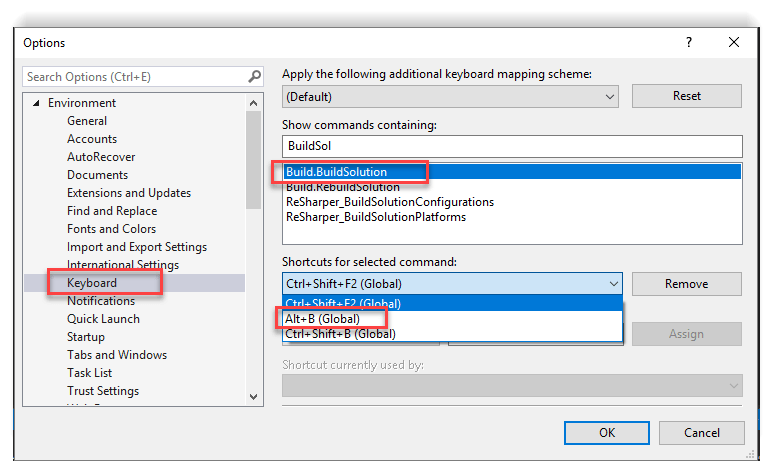
My mappings (example):
Build.BuildSolution:Alt + BProject.SetasStartUpProject:Alt + STools.ExternalCommand1:Alt + D(runsgac-deploy.ps1)Tools.ExternalCommand2:Alt + R(runsrec-pools.ps1)Debug.AttachtoProcess:Alt + A
External Commands Configuration:
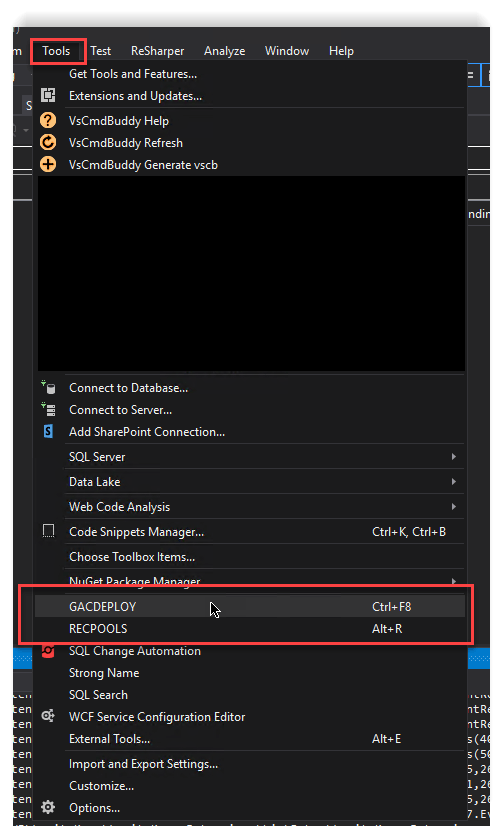
GacDeploy
| Field | Value |
|---|---|
| Command | C:\Windows\System32\WindowsPowerShell\v1.0\powershell.exe |
| Arguments | -file "C:\gac-deploy.ps1" $(TargetPath) |
| Initial Directory | $(ItemDir) |
- Enable: Use Output Window
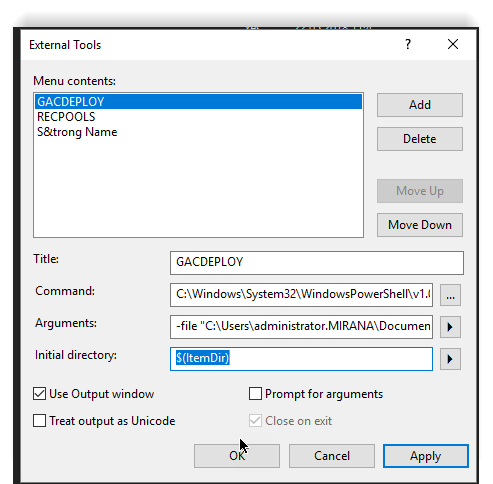
RecPools
| Field | Value |
|---|---|
| Command | C:\Windows\System32\WindowsPowerShell\v1.0\powershell.exe |
| Arguments | -file "C:\rec-pools.ps1" |
| Initial Directory | $(ItemDir) |
- Enable: Use Output Window
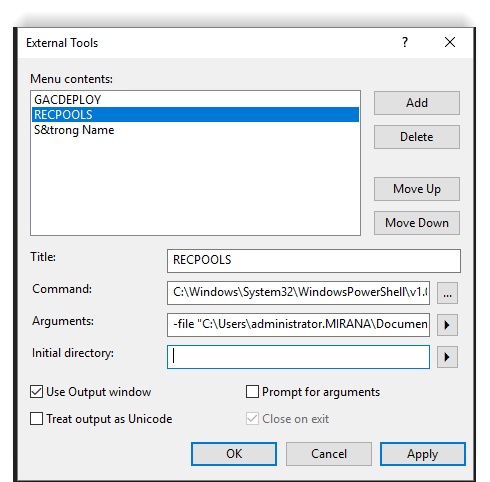
StrongName (also useful)
Get full assembly name via:
Set the command to powershell.exe and pass these arguments:
-command "[System.Reflection.AssemblyName]::GetAssemblyName(\"$(TargetPath)\").FullName"
- Automatic Deploy for All Projects via VsCommandBuddy
Steps:
- Install the VsCommandBuddy extension
- Create .svcb.json config in your solution folder.
- Add a deploy command.
Example PowerShell Script
param([String[]]$dllPath)

Import-Module WebAdministration

$gacutil = "C:\Program Files (x86)\Microsoft SDKs\Windows\v10.0A\bin\NETFX 4.6.1 Tools\gacutil.exe"

foreach($i in $dllPath) {
    Write-Host "[x] Installing $i"
    & $gacutil -i $i
}

& "$PSScriptRoot\Recycle-Pools.ps1"
Import-Module WebAdministration

$appCmd = "C:\Windows\System32\inetsrv\appcmd.exe"

$appPools = @("SharePoint - 80", "SharePoint - 4448")

foreach ($pool in $appPools) {
    & $appCmd recycle apppool /apppool.name:"$pool"
}

Start-Sleep -Seconds 5

net stop SPTimerV4
net start SPTimerV4

& $appCmd list wp
CommandBuddy Configuration (.svcb.json)
{
  "cmdname": "deploy",
  "title": "deploy",
  "description": "deploy",
  "cwd": "$(SolutionDir)",
  "filename": "C:\\Windows\\System32\\WindowsPowerShell\\v1.0\\powershell.exe",
  "arguments": "-command \"C:\\gac-deploy.ps1\" -dllPath  $(SolutionDir)\\Project1\\bin\\$(Configuration)\\Project1.dll,$(SolutionDir)\\Project2\\bin\\$(Configuration)\\Project2.dll,$(SolutionDir)\\Project3\\bin\\$(Configuration)\\Project3.dll",
  "async": false
}
- $(SolutionDir), full path to your solution.
- $(Configuration), build config (e.g. Debug/Release).
Run it from: Tools → Deploy
Related
Posts
How to Run SSH Commands on Your Server with GitHub Actions
A practical guide to automating server management and deployments by running SSH commands from GitHub Actions workflows
SharePoint 2013/2016: Migrating Search Service to Another Server
A step-by-step guide to migrating the SharePoint Search Service Application to a new server, including PowerShell commands and topology management.
PowerShell Module Organization for SharePoint Development
A practical guide to organizing PowerShell scripts and modules for SharePoint development, including dot-sourcing, module manifests, and reusable code structure.
Open for contract collaboration
I am available for contract-based collaboration. If you have an interesting project idea, schedule a call via Calendly.
Schedule a 30-min call